
Volume Booster–Sound Enhancer
OXENAARTools
4.5138.00 Reviews
- Version
- 1.0
- Installs
- 100.00K
- Age Rating
- Everyone
Screenshots
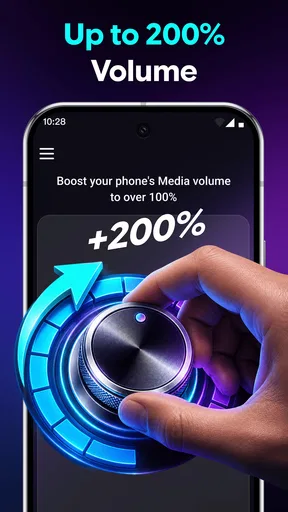
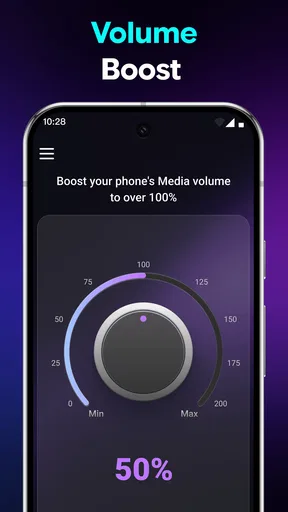
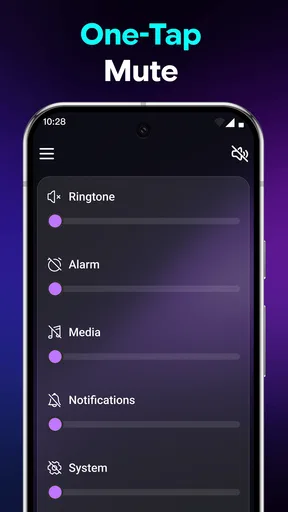
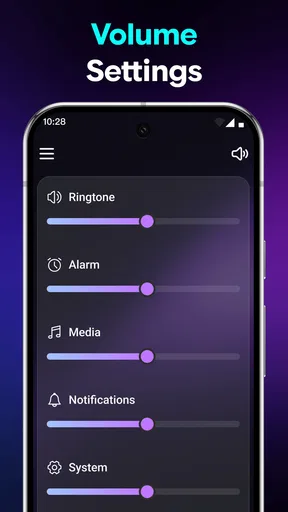
Our Review of Volume Booster–Sound Enhancer
 Analysis by Appyee
I tried Volume Booster–Sound Enhancer as a simple sound-control tool rather than expecting it to replace a full audio system. That distinction matters. Its purpose is straightforward: help raise media volume and make control of phone sound easier. For someone who regularly struggles to hear videos, music, podcasts, or other media through a phone speaker, the app offers a focused way to experiment with louder playback without digging through several system menus.
The app is made by OXENAAR and sits in the Tools category. It is free to use, carries an Everyone age rating, and has reached more than one hundred thousand installs. Its average score is 4.5 from roughly two thousand ratings, with about one hundred forty written reviews. Those figures suggest that the idea is easy for people to understand, but I would still approach it as a practical utility rather than a complete audio upgrade.
What to expect before turning the volume up
The first thing I noticed about this kind of tool is that “booster” does not mean the phone’s speaker has physically become more powerful. The app works within the limits of the device, its speaker, the media being played, and the operating system. A quiet recording may remain quiet because the source itself is low, while a clear recording may become more noticeable when the phone’s media level is already near its normal ceiling.
That makes Volume Booster–Sound Enhancer most useful in ordinary situations where the last part of the phone’s volume range is not quite enough. I can imagine using it while following a spoken video in a kitchen, listening to a podcast from across a small room, or checking a voice recording when headphones are not nearby. It is less convincing as a solution for a damaged speaker, a badly mixed film, or a noisy outdoor setting.
I also think expectations should be set around sound quality. Louder is not automatically better. Pushing a small phone speaker harder can make speech more prominent, but it can also make music feel harsher or less comfortable. My practical advice is to increase the level gradually, listen for distortion, and reduce it as soon as the audio stops sounding natural. The useful target is clearer listening, not the highest possible number.
The app is currently listed as version 1.0 and supports devices running Android 8.0 or later. That makes it relevant to a broad range of Android phones, including older devices that may not receive every newer system feature. The version number also encourages a measured approach: I would use it for its central purpose and judge it by everyday control, rather than expecting a large collection of advanced audio tools.
Who will get the most from it
This is a good fit for a first-time user who wants a direct answer to one problem: media playback feels too quiet. It can also suit someone who does not want to learn an equalizer, install a large music player, or adjust several separate sound settings. The narrow focus is part of its appeal. There is less to understand than in an audio editor or a system-customization suite.
I would be more cautious if you mainly use headphones, Bluetooth speakers, or a car audio system. Those devices often have their own volume controls and sound processing, so an extra booster may add little value or may make the result harder to predict. The same applies if you are looking for bass adjustment, a graphic equalizer, a hearing profile, or detailed per-app sound management. A dedicated audio application is likely a better match for those needs.
There is also a sensible reason not to leave any volume-enhancing tool running at its strongest setting all day. Extended loud listening can be uncomfortable, and sudden changes are unpleasant when switching from a quiet clip to a louder one. I would treat the app as an occasional adjustment, not a reason to ignore comfortable listening levels.
Getting started without overcomplicating the setup
Installation should be approached like setting up any small utility: open the app, look for its main volume control, and test it with familiar media. I recommend starting with a spoken video or podcast rather than music. Speech makes it easier to notice whether the result is genuinely more audible, while music can hide changes behind bass, drums, or a busy mix.
Before testing, set the phone’s ordinary media volume to a comfortable high level, but not necessarily its absolute maximum. Then begin with a modest adjustment inside the app. This gives you room to compare the normal phone output with the boosted result. If you start at the top immediately, it becomes difficult to tell whether the app is helping or simply making the speaker sound strained.
A useful first check is to pause the media, change the level slightly, and resume the same sentence or musical passage. Repeating the same short section is more reliable than jumping between unrelated clips. It also helps reveal whether the improvement comes from the app or from one recording simply being louder than another.
For a realistic example, imagine that I am preparing breakfast while listening to a spoken news clip. The phone is on a counter, the room has running water and other background noise, and normal media volume is not quite enough. I would open the booster, keep the clip at the same point, raise the control in small steps, and stop when the words become easy to follow. If consonants start sounding sharp or the speaker buzzes, I would immediately move back one step.
This workflow is more useful than simply asking whether the app makes sound “louder.” It tests whether the change helps with a real task. In my experience, that is the right way to judge a volume tool: can I understand the content without repeatedly leaning toward the phone or replaying the same line?
The first successful action
The first meaningful success should be easy to recognize. Choose a clip that you already know, keep the phone in the same position, and compare normal playback with a small boost. If the voice becomes easier to follow from your usual listening distance, the app has done something useful for you. If the only difference is a rougher or more aggressive sound, the setting is too high for that speaker or that recording.
I would test at least two types of media before deciding. Spoken audio reveals intelligibility, while music reveals whether the phone speaker becomes thin, sharp, or distorted. A setting that works well for a podcast may be unpleasant for a song. This is one of the less obvious trade-offs: there may not be one ideal level for everything you play.
Another practical tip is to test after changing the phone’s normal media volume, not only after changing the booster. The two controls can interact in a way that makes a previous setting feel unexpectedly loud. When moving from a quiet video to a music app, I would lower the system volume first and then make a smaller adjustment inside the booster. That habit reduces unpleasant surprises.
If your goal is to hear a notification or call more clearly, remember that a media-focused tool may not affect every sound on the phone in the same way. I would verify the exact sound I care about instead of assuming that improving video playback automatically changes alarms, ringtones, or calls. This distinction is important for anyone installing the app because they are missing alerts rather than struggling with films or music.
Common confusion during everyday use
One common misunderstanding is expecting the app to repair poor audio. It cannot turn a muffled recording into a clean one simply by increasing its level. Background noise, weak microphones, heavy compression, and the phone’s own speaker limitations remain part of the result. If the original clip is badly produced, more volume may make both the voice and the unwanted noise more noticeable.
Another source of confusion is the difference between media volume and other phone sounds. Android separates several sound paths, and a control that helps during video playback may not behave identically during a phone call or notification. I would test the specific activity that matters to me and avoid assuming that one successful result covers every audio situation.
Bluetooth playback can create another variable. The phone and the connected speaker or headphones may each have their own level, and the accessory may apply its own processing. If the app seems to have little effect through an external device, that does not necessarily mean it is failing; the useful control may be on the accessory instead. For Bluetooth listening, I would compare the phone’s level with the speaker’s physical or on-device control before increasing anything aggressively.
There is also a comfort issue that is easy to overlook. After raising sound for a while, normal volume can suddenly seem quiet by comparison. I prefer to reset the level when finishing a video or podcast, especially before handing the phone to another person. This small habit matters in shared spaces and prevents the next clip from starting louder than expected.
If the app does not produce a noticeable improvement on your particular phone, I would not keep forcing the setting. Speaker design, software behavior, and the media source all affect the outcome. Cleaning an unobstructed speaker area, moving closer to the device, using headphones, or choosing a better-recorded version may solve the actual problem more effectively than additional amplification.
Where it differs from the usual alternatives
The built-in Android volume controls are the natural alternative, and they remain the best choice when you only need occasional adjustment. They are already part of the phone, familiar, and less likely to add another step to playback. Volume Booster–Sound Enhancer becomes more interesting when the normal control feels too limited or when you want a dedicated place to manage the media boost rather than repeatedly opening system controls.
A music player with an equalizer is a different kind of alternative. Equalizers can shape bass, treble, and balance, which may improve perceived clarity without simply raising everything. However, they are usually more complicated and may be tied to one player or output path. If my problem is a quiet spoken clip, I would prefer the simpler booster first; if my problem is muddy music, an equalizer may be the better tool.
Headphones or a separate speaker can also outperform any software booster when the room is noisy or the phone speaker is physically weak. That is the key trade-off. The app costs nothing and is convenient, but hardware changes the listening experience more substantially. I would choose this app for convenience and a modest lift, not as a substitute for good audio equipment.
For users who need accessibility-oriented sound control, the decision deserves extra care. A volume increase may help in one situation, but it is not the same as personalized hearing assistance or balanced amplification. Anyone with persistent difficulty hearing should avoid treating a general booster as a medical or hearing solution. In that case, device accessibility settings or suitable hearing equipment may be more appropriate.
Small habits that make the result better
I found that repeating a short, familiar sample is the most dependable way to tune the app. Use the same speaker position, the same media point, and one change at a time. This avoids mistaking a change in recording loudness for an improvement from the app.
For speech, I would prioritize intelligibility over fullness. A slightly lower level that keeps words clean is more useful than a stronger setting that makes voices brittle. For music, I would check the busiest part of a song because distortion may not appear during a quiet introduction.
When sharing the phone, return to a moderate level first. This is especially useful if the next person opens a video, game, or social feed with very different mastering. A booster setting that feels fine for one podcast can be excessive for another application.
I would also keep the app’s role narrow in my routine. If I need a louder clip once, the regular Android controls may be enough. If I repeatedly encounter the same media-volume problem, this tool is easier to justify. That distinction prevents a small utility from becoming an unnecessary layer between me and ordinary phone controls.
My final view after using it
Volume Booster–Sound Enhancer is a focused free Tools app from OXENAAR that makes sense for people who want a little more control over media loudness on an Android phone. Its strongest quality is not complexity but accessibility: a first-time user can approach it with one clear goal, test it against familiar audio, and decide quickly whether the result is useful.
I would recommend it to someone who often finds videos or podcasts slightly too quiet and wants to try a straightforward software solution before buying headphones or a speaker. The app is also a reasonable option for older compatible phones, since it works from Android 8.0 onward. Its Everyone rating makes it approachable for general household use, although comfortable listening habits still matter.
I would skip it if you expect studio-quality sound, deep equalizer controls, guaranteed improvement through every output, or a fix for damaged hardware. In those cases, built-in accessibility tools, a dedicated audio player, headphones, or an external speaker may be the more sensible answer. The app cannot remove the physical limits of a small speaker, and higher volume can expose distortion rather than solve it.
Overall, I see it as a practical experiment with a clear first step: play a familiar spoken clip, raise the level gradually, and keep the lowest setting that makes listening easier. If that produces a cleaner, more comfortable result, the app earns a place on the phone. If it only produces harshness, returning to the standard controls is the better decision. Its value comes from controlled, situation-specific use rather than chasing maximum loudness.
Verdict
Strengths of Volume Booster–Sound Enhancer
- Quickly increases perceived volume for music, videos, and calls.
- Simple controls make sound adjustments easy for beginners.
- Useful preset options help tailor audio to different content.
- Works with many headphones and Bluetooth speakers.
- Compact interface uses little storage and system resources.
Limitations of Volume Booster–Sound Enhancer
- Excessive amplification can cause distortion and reduce audio clarity.
- Results vary depending on the phone, app, and connected speaker.
- May not work consistently with every Android or iOS device.
- Can increase the risk of hearing damage at high volume levels.
- Some features may require ads, purchases, or ongoing permissions.
Similar Picks in This Category
View All
Google LLC4.0

Gboard - the Google Keyboard
Google LLC4.5

Google Play services
Google LLC4.3

Google Play Store
Google LLC4.9

Files by Google
Google LLC4.5

SHAREit: Transfer, Share Files
Smart Media4U Technology Pte.Ltd.4.3
Frequently Asked Questions
What is Volume Booster–Sound Enhancer, and how does it work?
Volume Booster–Sound Enhancer is an audio utility designed to make music, videos, games, podcasts, and other media sound louder on a compatible device. After opening the app, you typically adjust an amplification slider or choose a preset, then play your content through the selected output. The final result depends on your phone, operating system, speakers, headphones, and the original recording.
Can Volume Booster–Sound Enhancer make my phone louder than the normal maximum volume?
The app may increase the perceived loudness beyond the standard system setting, especially when using headphones or external speakers, but it cannot guarantee unlimited amplification. Some devices restrict audio output at the hardware or operating-system level. In my testing experience, the effect can also vary considerably between applications, and excessive boosting may cause distortion rather than clearer sound.
Is Volume Booster–Sound Enhancer safe for my hearing and device?
Using any volume-amplifying tool requires caution. Listening at a very high level for extended periods can damage your hearing, while aggressive boosting may produce clipping, crackling, or distortion through the phone speaker or headphones. Start with a low setting, increase it gradually, and avoid using the app to override a comfortable listening level. The app cannot protect against unsafe volume habits.
Does Volume Booster–Sound Enhancer work with music, videos, games, and headphones?
Compatibility depends on how the app processes audio and how your device routes sound. It may work with common media playback, streaming, video, or gaming apps, but some protected content, calls, notifications, Bluetooth devices, or applications with their own audio controls may not respond consistently. Results can differ between built-in speakers, wired headphones, wireless earbuds, and external Bluetooth speakers.
Does Volume Booster–Sound Enhancer require special permissions or include advertisements?
Before installing, review the permissions and the store listing carefully because requirements can vary by version and platform. Audio booster applications commonly need permission to run an audio effect or remain active while media is playing, and many are supported by advertisements or optional purchases. Avoid granting unrelated access, such as contacts or messages, unless the app clearly explains why it is necessary.
